
iPhone Duo tutorials
Your first design preview
Start an iPhone Duo browser design review with Fieldnotes, frame the device, try a Figma prototype or HTTPS webpage, and understand what scene configuration does not save.
On this page
Start with the built-in example in the Online Simulator. Fit the device into the canvas, compare its poses, then try a Figma prototype or embeddable webpage. Treat the result as a design preview, not a native compatibility test.
Start with the example, not a setup checklist
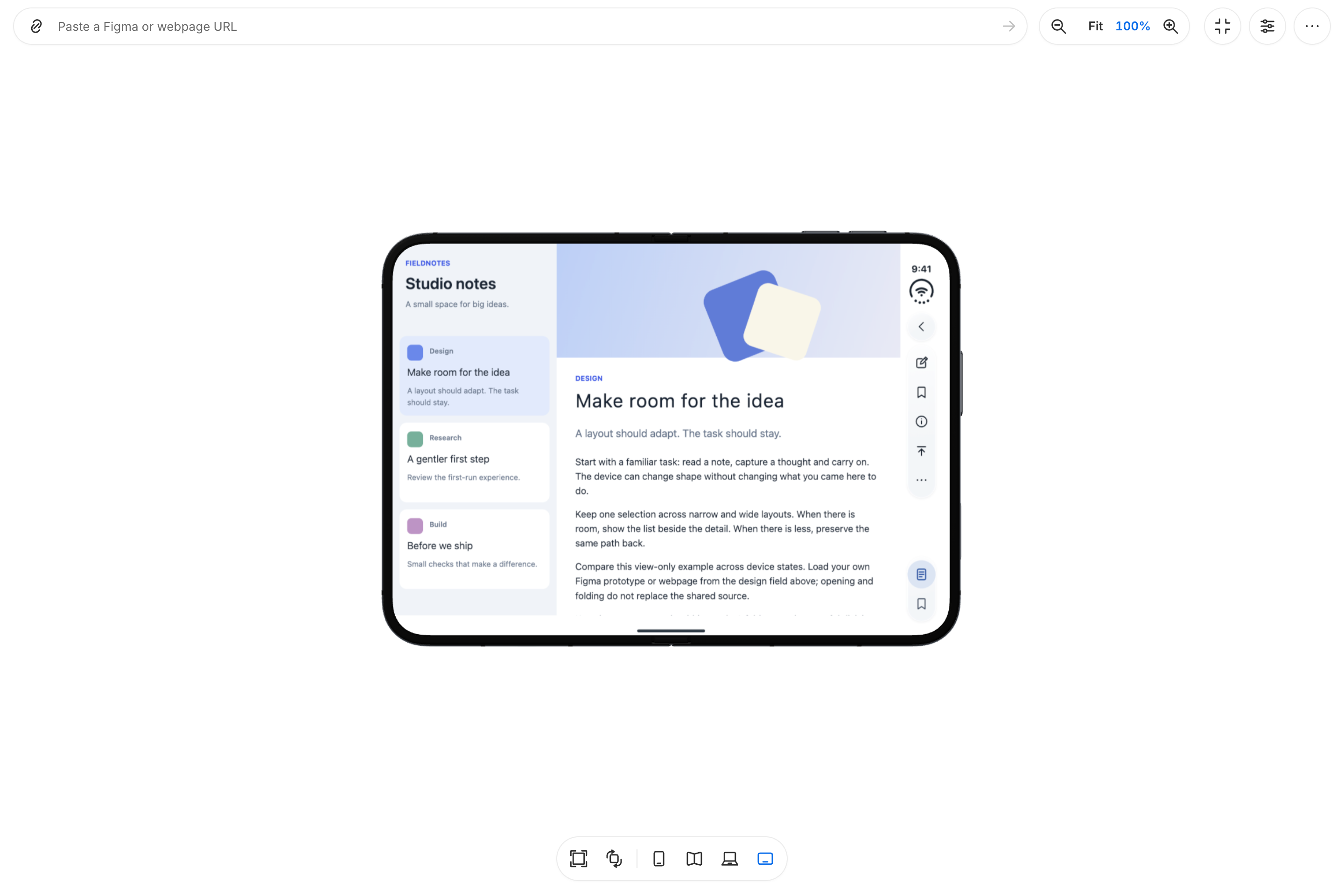
Open the Online Simulator in a new tab. A fresh session starts with Fieldnotes, a built-in example. You do not need to install Xcode to explore this example.
Give yourself one question to answer: is the main action still easy to find when the device changes pose? Starting with a question makes the preview useful before you bring your own work.
Get the whole device into view
A desktop canvas starts at 100%. On a narrow viewport, the first view uses Fit to show the device. Use Fit again whenever you want to see the whole device; 100% selects that zoom level, not a calibrated physical size. Later manual zoom choices are not automatically reset when you change posture.
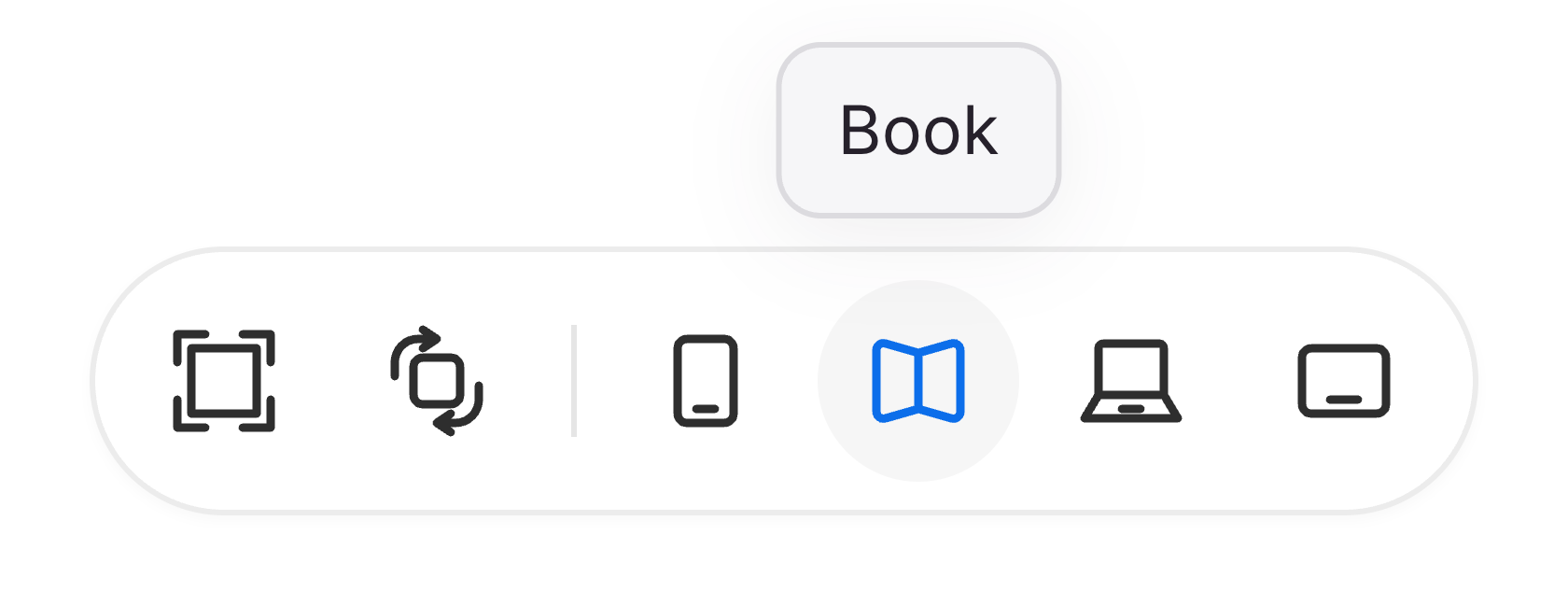
Use Cover, Book, Tabletop and Open to compare the same design in the existing device views. Change one thing at a time so the discussion stays about composition and task continuity, not the number of screenshots.
The toolbar includes a visible control to exit and re-enter the workspace. It keeps the current design session rather than requiring you to submit the address again. Keyboard users can also use Escape to leave the immersive view.
Bring a prototype you can share
Paste a Figma prototype or an HTTPS webpage into the single-line address field and submit it. Use a version whose access settings are appropriate for the people in your review.
If you see a sign-in screen or an embedding error, open the original address directly and check access there. A working link does not always mean that a provider permits embedding. Do not try to bypass a file owner’s restrictions.
Current sources are the built-in example, a supported Figma address or an accessible HTTPS webpage. This guide does not promise local-image upload, native app execution or a way around another service’s sharing or embedding restrictions.

Give the review a small, concrete goal
Choose one flow rather than a whole product tour. Ask your reviewer to locate the next action, explain what changed between views, and identify any part that needs a closer look.
Write down decisions separately from observations: what looked unclear, what you propose changing, and what still needs testing. A screenshot of a design is not evidence that a native app behaves the same way.
- Start from the same screen for each comparison.
- Keep a list of questions for the developer instead of treating a visual preview as a test report.
- Return to the original Figma file or webpage to make changes.
Know what this workflow does not save or prove
Scene JSON stores scene configuration and camera choices. It does not package your Figma file, embedded webpage, browser session or a screen recording.
Check native keyboard, system controls, accessibility and application behavior separately in the relevant native environment. For a design review, the useful outcome here is a clearer conversation about the interface, not a compatibility certificate.
Scene JSON stores scene configuration and camera settings, not the design document, source URL, embedded browsing session or captured content. It is not a saved cloud project, a recording or a shareable copy of the Figma file. Keep the original design and any client access settings in their source service.
Scope and review details · v1.0.2
Scope: official sources and practical guidance. Runtime measurements and hands-on observations are labeled separately and should be rechecked against the stated versions.
- Last reviewed
- Applies to
- Designers and freelancers working on iPhone Duo experiences
- Verification status
- Instructions checked against Plurigent source baseline 2e6f89e on October 4, 2026. This content update does not claim a new live Figma, YouTube, native Simulator or physical-device test.